Build & run
Build is the page you sit on while you work: stage and commit, run the tasks and checks your project already has, watch the stack, and read the output. Open it from Build under Dev Tools in the sidebar.
Layout
Git on the left, a tabbed action pane on the right, and the console pane (⌘J) sliding in from the far edge when you want to read raw output. The divider between the two panes is draggable.
If the current branch name contains a known ticket key, that ticket pins to the top of the page. ⌘I expands it for assignee, last-updated, and the description; Esc collapses it again.
The git pane
The head card shows the branch, the short SHA of the last commit with its author and age, and where you stand against your upstream.
| Upstream state | Card reads | Button |
|---|---|---|
| Clean | Up to date with <upstream> | — |
| Ahead | N commits ahead of <upstream> | Push |
| No upstream configured | Branch has no configured upstream | push -u |
| Behind | N commits behind <upstream> | Pull |
| Diverged | <upstream> diverged · N ahead · M behind | Rebase (inert — see below) |
A diverged branch is reported, not resolved. The Rebase button renders but does nothing when clicked; that decision is intent-dependent, so it goes to your terminal.
Below the card are collapsible groups: Conflicted (only when conflicts exist), Staged, and Modified (unstaged plus untracked, with a Stage all shortcut). Each row carries a change tag (A, M, D, R, !), the path, its own +/− counts, and a Stage or Unstage button. Group headers roll the +/− up. Click any path to open that file in your default editor.
When something is staged, a commit field appears under the list. Type a message and press Enter (or click Commit). Only staged changes are committed — Salience never stages for you as part of committing.
Tabs
The right pane is a segmented selector. Each tab carries a state tint and a count, so it reads as a summary before you click anything. Tabs only appear when they have something behind them.
| Tab | What it holds | Count |
|---|---|---|
| Suggested | Actions cued by the files you've changed | Number of cues |
| Checks | Read-only health checks and their latest verdict | Number of checks available |
| Toolchain (e.g. PHP) | Problems found with a detected runtime — one tab per toolchain | Number of issues |
| Stack | Docker Compose services for this project | Running / total |
| Tasks | Every runnable task Salience discovered | Number of tasks |
Suggested is the default landing tab, even when empty.
Suggested
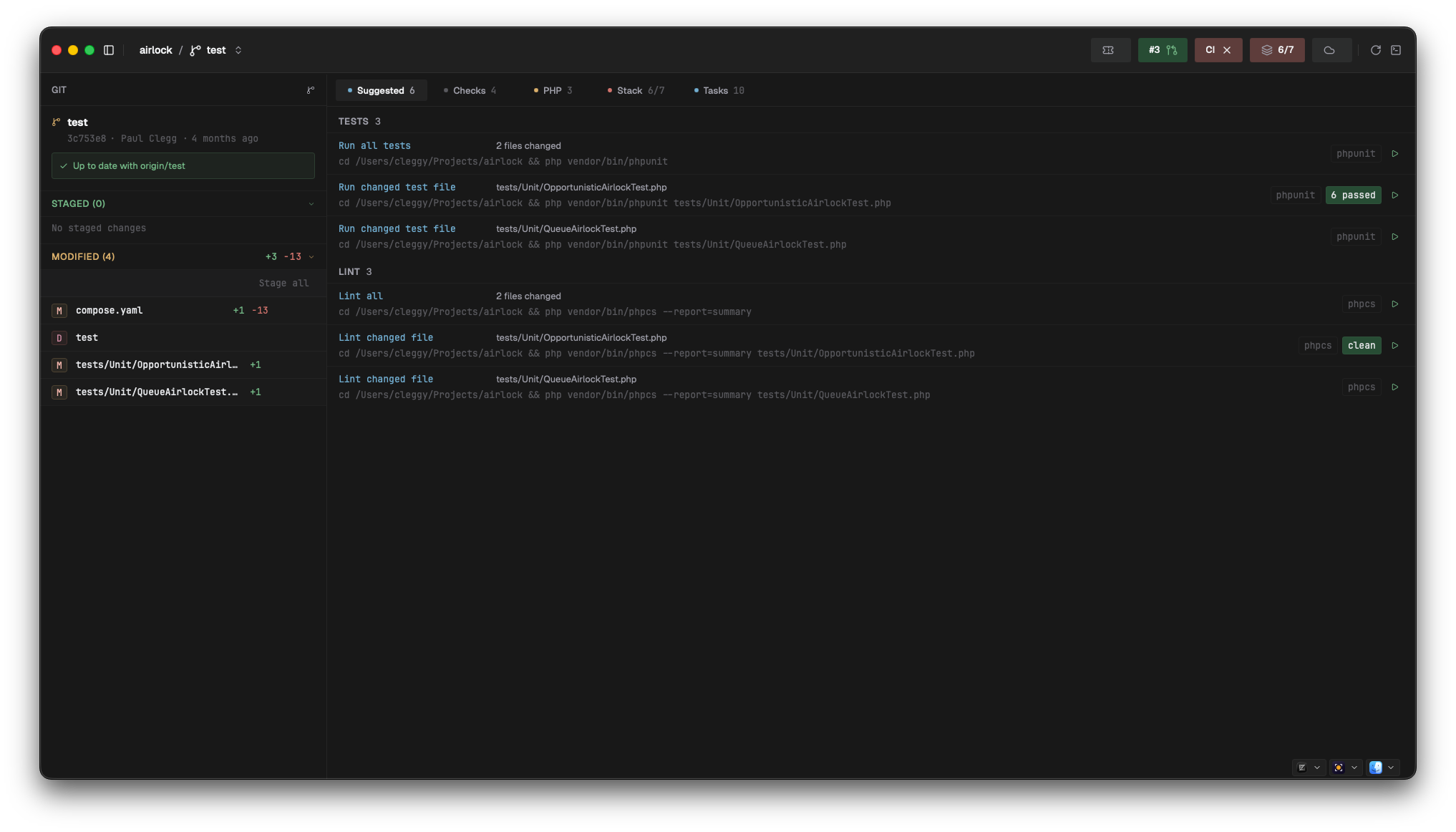
Salience matches your changed files against the runners it detected — PHPUnit, Pest and PHPCS for PHP; Jest and Playwright for Node — and groups the results by role (Tests, Lint, and so on). You typically get an "all" row and a "changed file" row per runner.
Each row prints the exact command it would run, including the docker compose exec prefix when the runtime resolves to a container rather than your host. Hit Run and it streams into the console pane; the result stays on the row as a chip (763 passed · 1 skipped) and survives navigating away and back.
Roles Salience refuses to auto-run — migrations, formatters, lockfile actions — still surface as cues, but with an inert Run button. Hover it for the reason. The same rule applies when no runtime could be resolved.
Checks
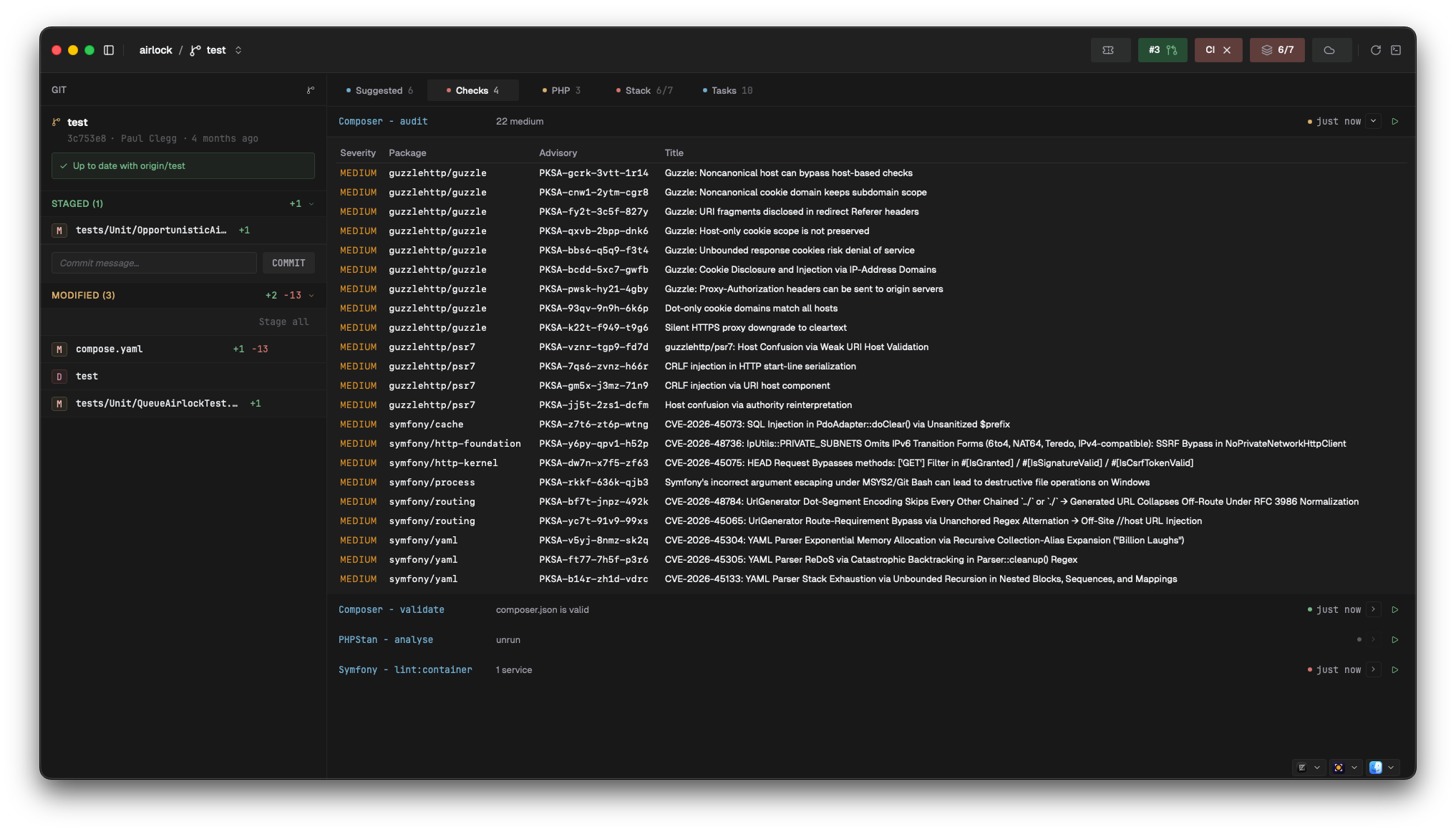
Read-only checks whose latest result is cached with a timestamp, so the tab answers "what did this say last time?" without running anything. Nothing auto-runs — you click Run.
A row shows the check name, a one-line summary (5 critical, 3 high, 7 medium, 1 low, 4 info, container is valid, or unrun), and when it last ran. Expand a row for the parsed findings, and, if there's more than one, a N past runs list — picking one replays that run's output into the console pane.
Shipped check kinds are PHP-only today:
| Check | Tool |
|---|---|
| Composer - audit | composer audit |
| Composer - validate | composer validate |
| Doctrine - Schema Validation | doctrine:schema:validate |
| Symfony - lint:container | lint:container |
| PHPStan - analyse | PHPStan |
| Psalm - analyse | Psalm |
| Mago - analyze | Mago |
Each only appears when the project shows evidence of that tool. For a kind Salience doesn't have specific status logic for, the verdict falls back to the exit code: 0 is ok, anything else is fail.
Toolchain
One tab per detected toolchain, labelled by the toolchain. PHP is the only one reporting issues today; the kinds are Undeclared extension, Extension not loaded, Lockfile drift, and Binary missing. The tab tints red when any issue is high severity, amber otherwise.
Stack
The Compose services for this project: service name, technology and image version, first published port, and a health/state pill. Per-service Restart, Stop, and Start (Resume when paused) sit on each row; whole-stack Start, Restart, and Stop sit in the footer. Buttons only render when the action makes sense for the current state.
The terminal icon on each row does not show logs yet. Use Container logs… in the command palette instead — it streams docker compose logs --tail=200 -f for that service into the console pane. Stack up/down and per-container start/stop/restart are in the palette too.
Tasks
Everything runnable Salience found: your Taskfile targets, package.json scripts, and the [[task]] entries from salience.toml. Manifest tasks are listed first and tagged salience.toml. There's a filter box, and the Run button turns into Cancel while that task is streaming.
Manifest trust. salience.toml ships in the repo, and anyone with PR access can change what a task executes — so its tasks are not registered until you approve them. Until then the Tasks tab shows a prompt instead, listing what would run. Accept and the tasks register; deny and they stay absent behind a Re-review button. The fingerprint covers only task ids and their exec strings: retitling a task won't re-prompt, changing what it runs will.
The console pane
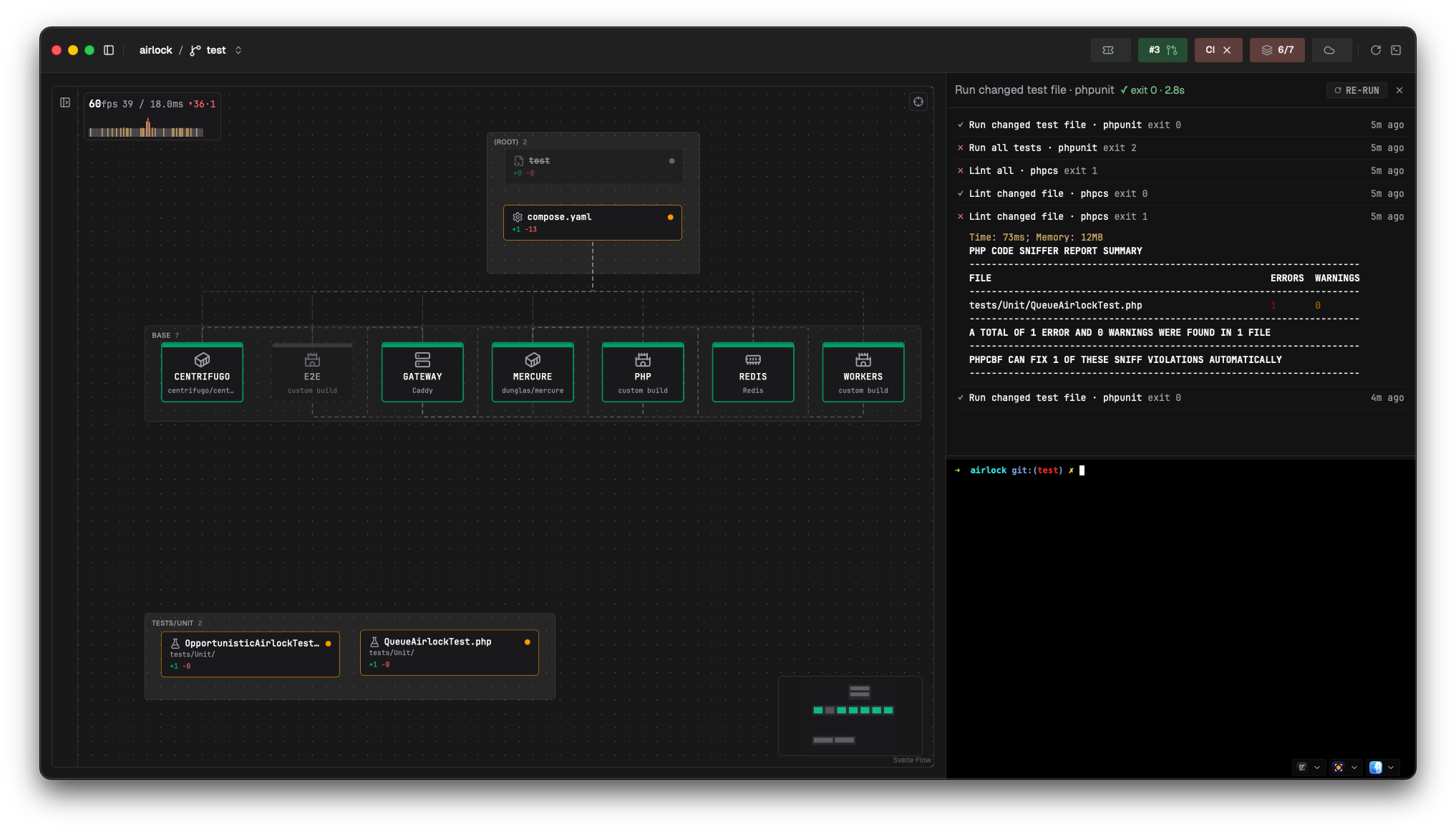
Press ⌘J (or click the terminal icon in the header, or use Toggle console in the palette). It never opens itself — a running task shows a spinner in place, and the pane is opt-in for when you actually want the output.
- One run at a time. The header shows its name and status:
Running…,✓ exit 0 · 15.2s,✗ exit 1 · 3.4s,Cancelled, or a spawn failure. - Cancel while running, Re-run once it's finished.
- Starting a new run cancels the one in flight, so output never interleaves.
- The body auto-scrolls, unless you've scrolled up to read something.
- Drag the left edge to resize; the width is remembered across launches.
- Clear console is in the palette. The palette prints
⌃Lbeside it, but that key isn't actually bound — use the palette entry.
Keyboard
| Key | Effect |
|---|---|
| ⌘J | Toggle the console pane |
| ⌘K | Toggle the command palette |
| ⌘I | Expand / collapse the ticket tile (Build page only) |
| Esc | Collapse the ticket tile |
Next
- Review → — read your branch's diff before you push it
- Command palette & HUD → — the same tasks, containers, and console from the keyboard
- Configuration → — the
salience.tomlschema behind the Tasks tab