The Map
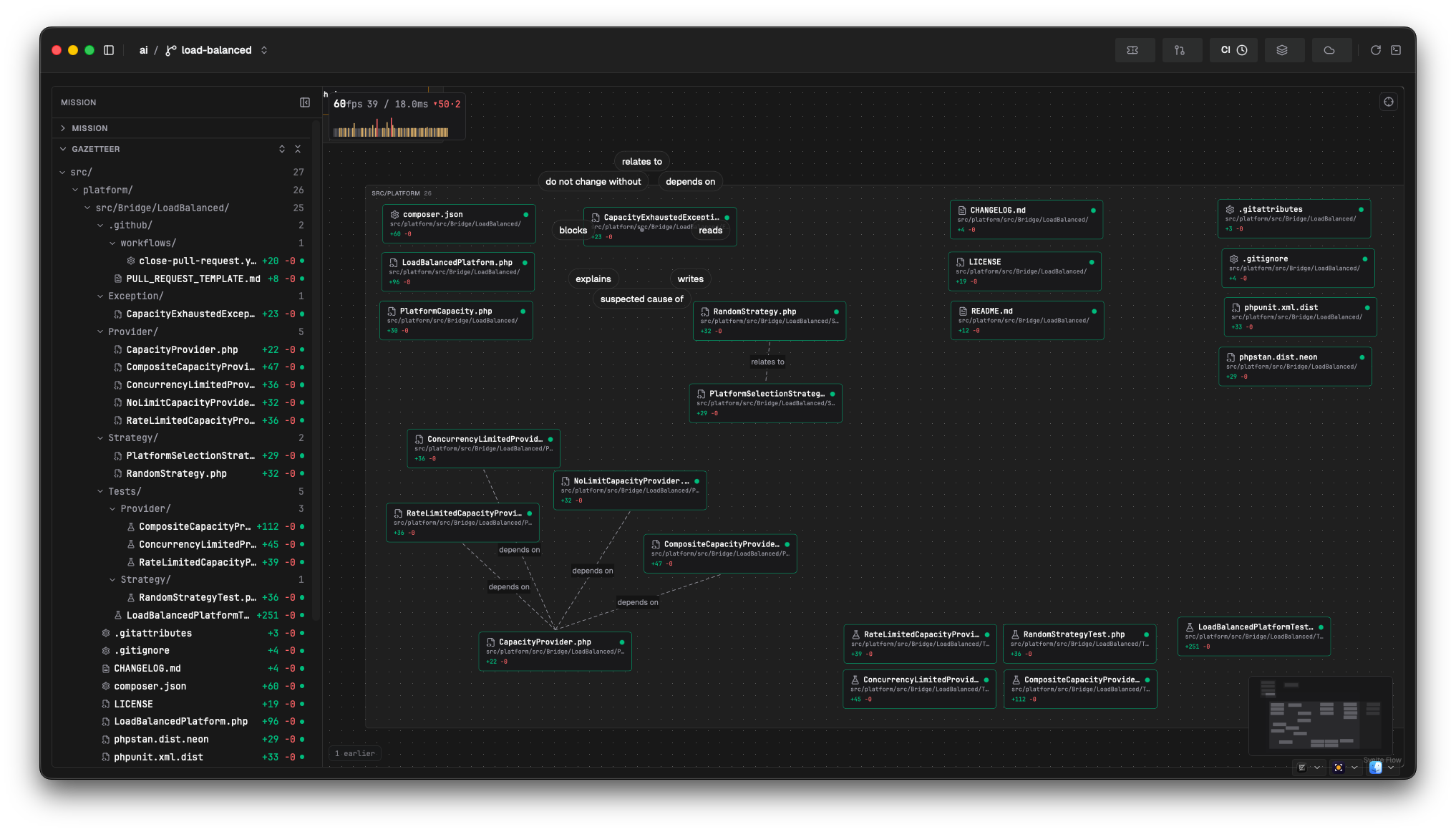
The Map is a spatial view of what you're working on: your current branch's changed files laid out as a canvas you arrange yourself, with the project's wider branch network one zoom-out away. Open it from Dev Tools → Map in the sidebar.
Two altitudes
The map has two zoom levels, crossed by scrolling the mouse wheel:
| Altitude | What you see |
|---|---|
| Desk (default) | The current branch's working set — every file changed vs the base branch plus the working tree — as draggable nodes. Positions persist per project; new files are auto-placed, and nothing you've placed ever moves on its own. |
| Network | Zoom out far enough and the desk crossfades into a tube-map of the project's branches as stations, grouped into islands. Zoom back in to return. |
The desk renders at most 150 file nodes; a notice shows the count of any files beyond that. If the branch has no base to diff against, the map shows the working tree only and says so.
Islands and stations
At network altitude, stations group into three sectors:
| Island | Contents |
|---|---|
| Worktrees | Branches materialised as git worktrees |
| My branches | Your local branches |
| Remote | Remote-only branches |
Chips at the bottom centre select an island (empty islands are disabled); ← / → cycle through non-empty islands and Home snaps back to the desk from anywhere. Selecting an island frames its stations and opens a panel listing one row per branch — status badges, ahead/behind, and for worktrees an occupancy hint, last activity, and an on-demand disk-size measure.
The peek card
Hover any station, island-panel row, or attention marker for 150ms to peek at that branch; click to pin the card. It shows the branch's situations (loudest first), its ticket/PR/CI badges, and its worktree if one exists. A pinned card also offers actions, which depend on the sector:
- Remote — Materialize (create a worktree) and Go to work
- My branches — Switch (checkout; disabled with an explanation if your dirty tree would block it), Materialize, Go to work
- Worktrees — Go to work only
Materialised worktrees are created under ~/.salience/worktrees/<project>/<branch>, outside the repository, so they never appear as untracked noise. Switching or materialising from the card runs as a short camera "ride" out to the network and back; press Escape to skip the choreography (the action itself still completes).
What draws your attention
Attention markers — branches with open situations (failing CI, waiting reviews, and so on) project onto the canvas edge as markers at desk altitude, sized by loudness and coloured by severity, each pointing towards its island. Clicking one opens the pinned peek card for that branch.
Presence — files you've just saved glow, decaying over about 90 seconds, and a you-are-here marker sits on your most recent single-file save, fading after 8 minutes of inactivity. Presence is ephemeral: it resets on project switch and nothing is persisted.
Follow camera — the button in the top-right corner toggles follow mode (per project, off by default). When on, the camera flies to the you-are-here marker as it moves between files; bulk events like branch switches never move it.
Event ticker — a one-line strip of recent activity scoped to the current desk: events on the current branch, its PR, and its ticket, plus every MCP query an agent makes against this project. Entries fade with age and leave the strip after 5 minutes; hover to expand the session history (up to 100 entries). Display-only — rows aren't clickable.
Error paths
With a Sentry connection configured, the side panel's Errors section lists the project's unresolved issues. Toggling one draws its stack trace onto the canvas as a chain ending at the crash site. Files in the chain that aren't on the desk appear as auto-placed ghost nodes; where several active paths pass through the same file, the shared edges thicken. Selecting a file in the chain shows its crashing frames re-anchored against your working copy in the detail panel — so you can see whether your change touches a line that actually crashed.
Compose services
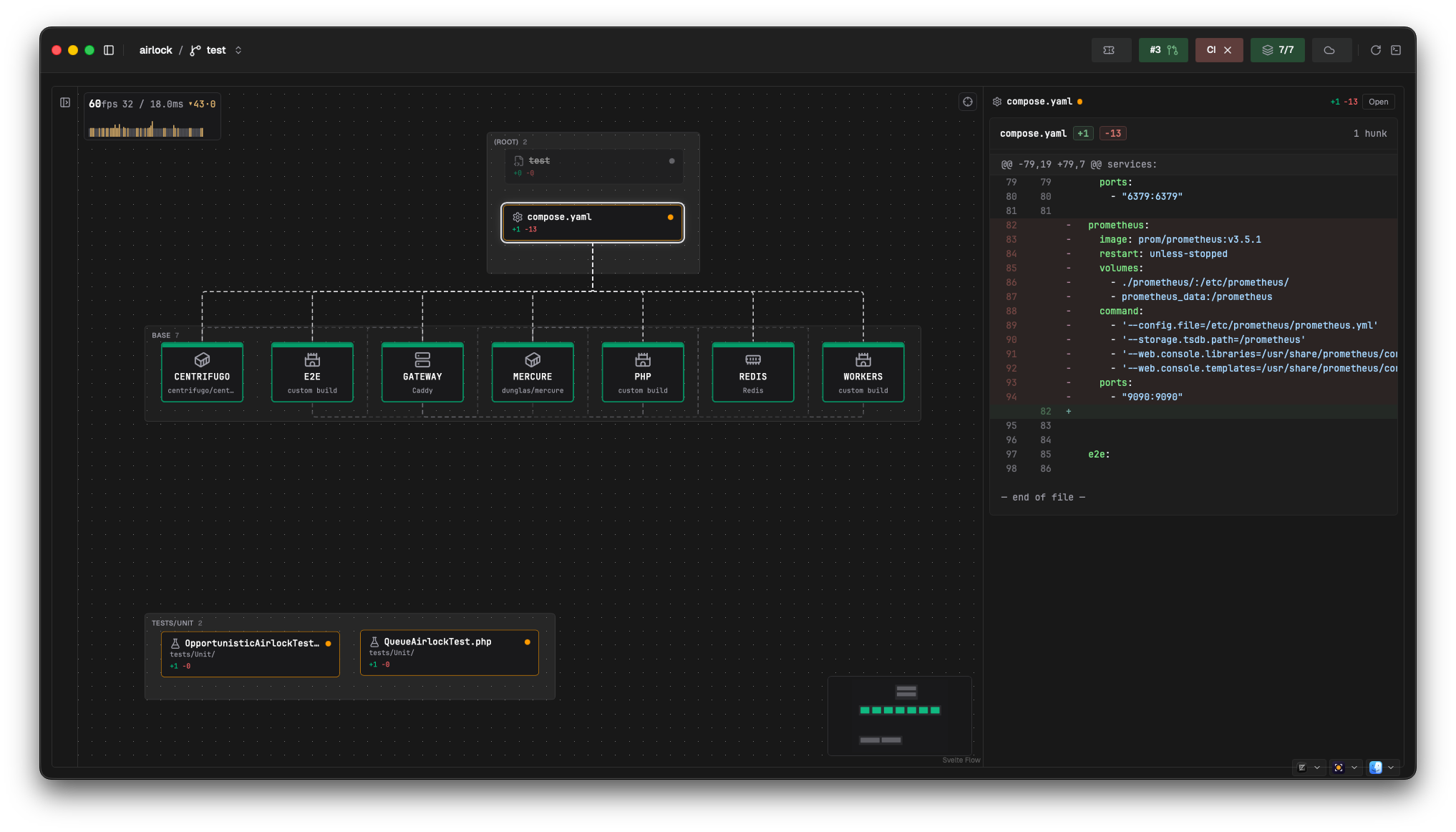
Docker Compose services declared in the project render as buildings on the desk. The building is the declared service; the matched running container sets its power state:
| State | Meaning |
|---|---|
| Lit | Running (and healthy, if it has a healthcheck) |
| Dark | Not running |
| Flicker | Restarting or unhealthy |
| Stale | Running, but its image predates the current one |
Right-clicking a building opens a command wheel whose items — tail logs, shell, up, reconcile — copy the corresponding docker compose command to your clipboard for you to run in a terminal. Salience never executes them itself.
Notes and drawn edges
Right-click a file node for a ring menu with two actions:
- Add note — attach a sticky note to the file. Click a note to read, edit, pin, or dismiss it.
- Create edge — draw a typed edge to another node, choosing from eight kinds: relates to, depends on, reads, writes, suspected cause, explains, blocks, do not change without.
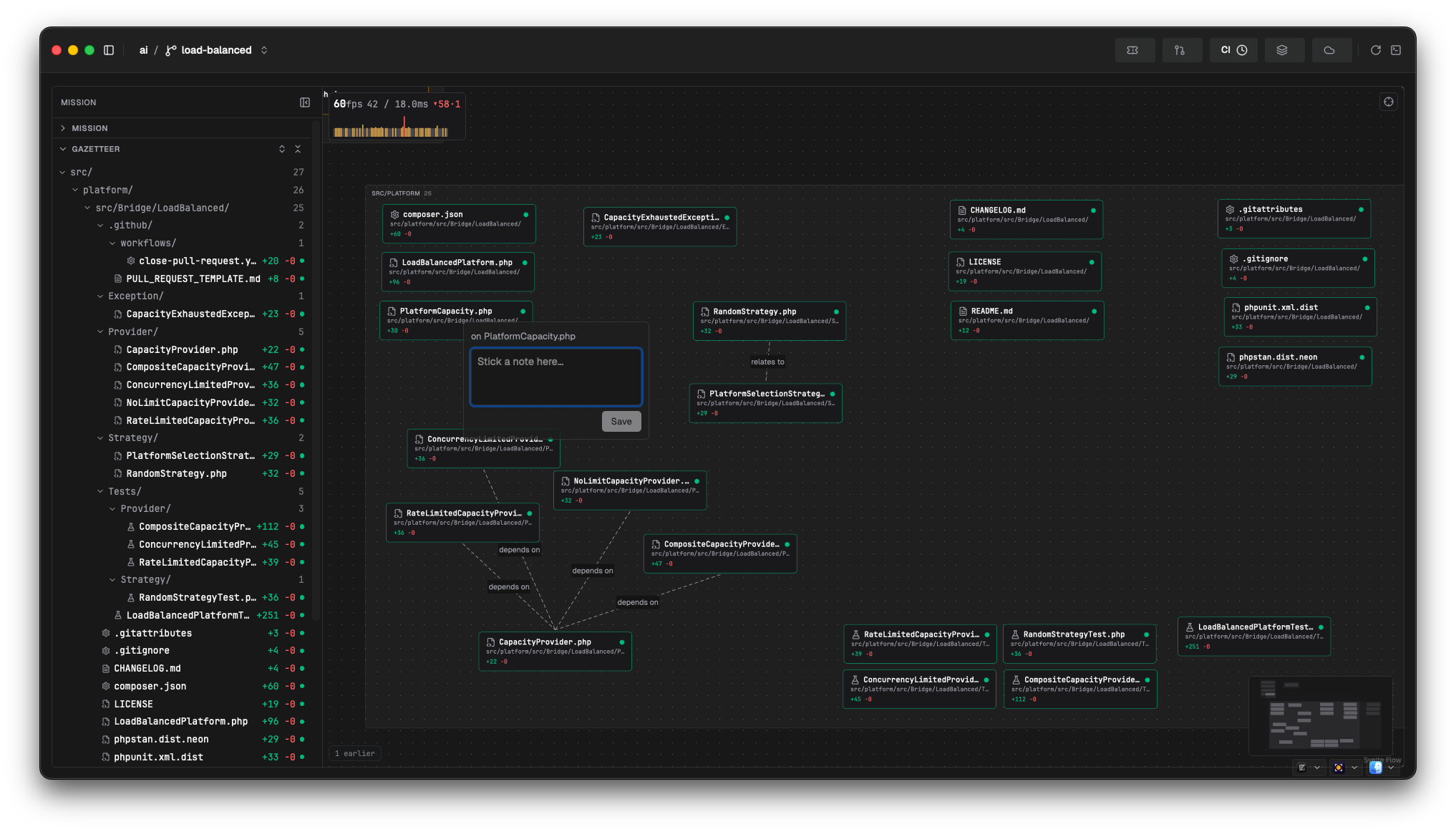
Agents connected over MCP can also leave notes. Agent notes that you neither pin nor dismiss are removed after 14 days; your own notes and anything pinned never decay.
Side panel
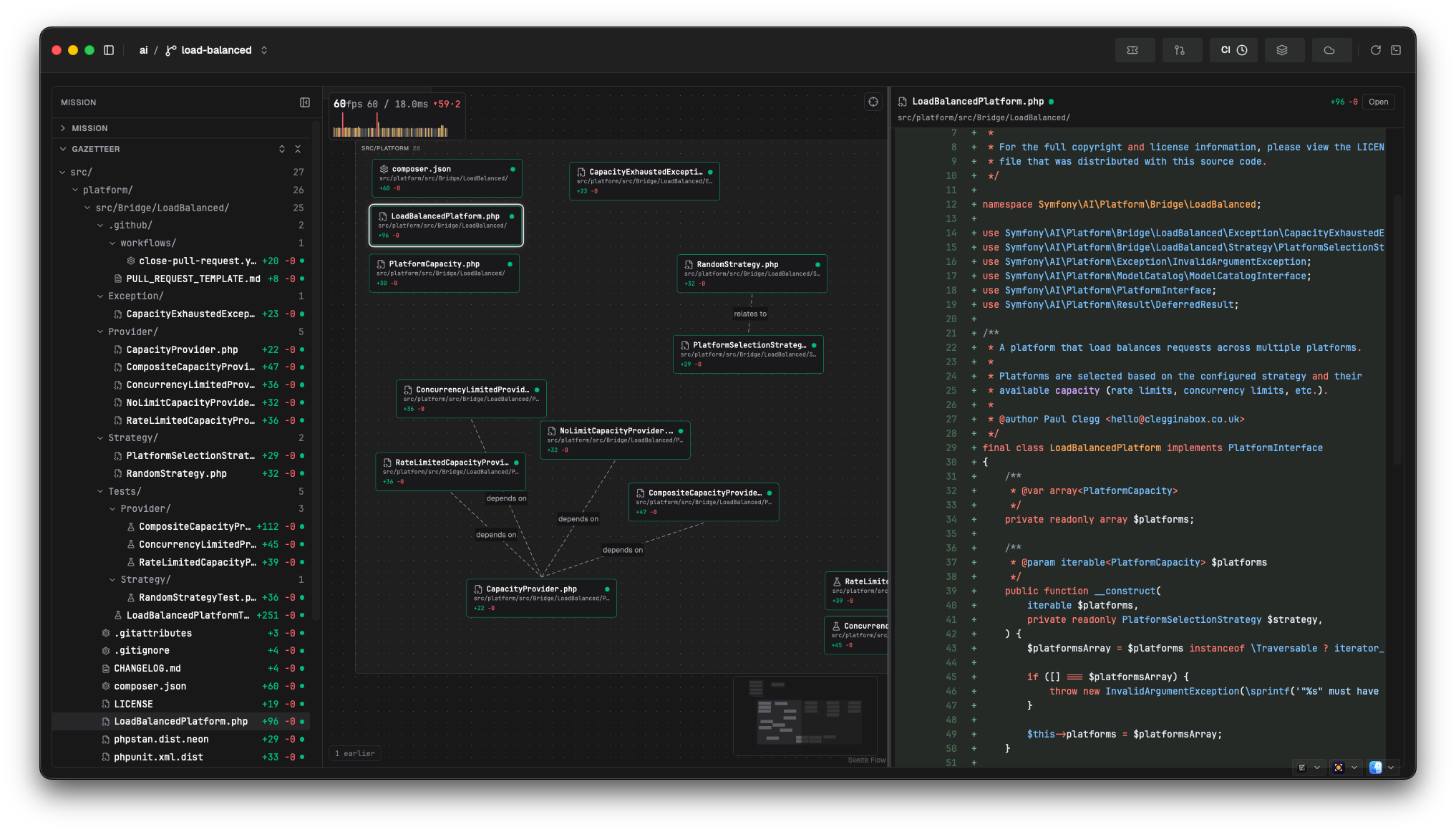
The collapsible left panel has four sections: Mission (the branch's unit of work — ticket, PR, CI), Gazetteer (the working set as a directory tree; clicking a file flies the camera to its node), Errors (above), and Checks (per-file diagnostics from health-check runs). Files with check errors also render as breaches in a faint field over the canvas, which fades as the results age — fresh for 10 minutes, gone after 4 hours.
Selecting a file opens a detail panel on the right with its diff, diagnostics, and any crashing frames from active error paths.
Keyboard and navigation
| Key | Action |
|---|---|
| ← / → | Cycle islands (network altitude only) |
| Home | Snap the camera home |
| Escape | Close one layer per press: skips a ride, then closes the peek card or ring menu, then exits the island, then snaps home; at desk altitude, clears the newest error path, then the selection |
| ⌘K | Command palette |
The palette carries the map's navigation commands from anywhere in the app: the three island commands, Map: go home, and your last six map journeys per project (switches, materialisations, island visits) for jumping back to where you just were — a recalled switch re-opens that branch's peek card rather than replaying the checkout.
Next
- Entities, correlations & situations → — the substrate the map renders
- My Work → — the same units of work as a prioritised list
- Worktrees → — the cleanup-triage view of the worktree island's contents
- Connect your tools → — the connectors that feed the map