Command palette & HUD
Two keyboard surfaces sit above every page. The palette (⌘K) is how you do things: run a task, jump to a page, restart a container, copy a PR URL. The HUD is the strip along the top of the window that tells you where you are and what state that context is in, without you asking.
Neither surface ever opens itself. Salience is ambient — nothing steals focus.
Opening the palette
Press ⌘K (or Ctrl+K) anywhere in the app. Press it again, or Esc, to close.
Start typing to filter. ↑/↓ move the selection, Enter runs the highlighted command. Rows ending in … drill into a sub-view instead of firing — a breadcrumb appears next to the input showing where you are.
| Key | Effect |
|---|---|
| ⌘K | Toggle the palette |
| ⌘[ or ⌘← | Back one level (works even with a query typed) |
| Backspace | Back one level, when the input is empty |
| Esc | Close everything |
Every open starts fresh at the root with an empty query, so "⌘K and start typing" always behaves the same. Running a command closes the palette; drilling in keeps it open. If a command fails it stays open too, so you can see what happened.
Opening the palette closes any HUD popover that was showing.
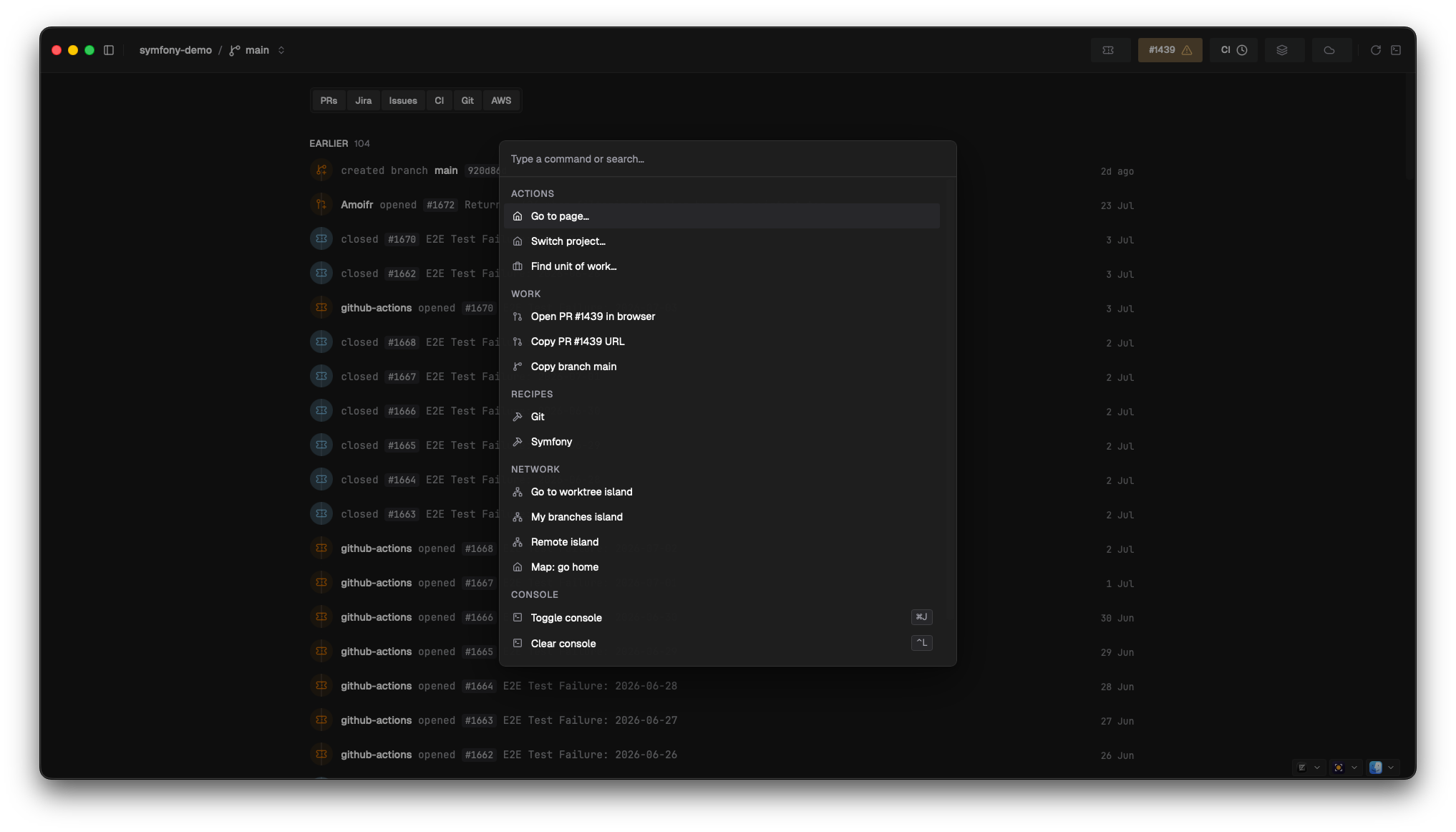
What's in it
Groups only render when they have something in them, so the list stays short. Root order is fixed:
| Group | Commands | Notes |
|---|---|---|
| Suggested | Checks and tasks matching your changed files | Build page only — these are your scoped actions, matched against the working tree |
| Actions | Run task…, Go to page…, Switch project…, Find unit of work… | Each drills in |
| Work | Open PR in browser, Copy PR URL, Open ticket, Copy ticket key, Copy branch | Acts on the branch you're currently on |
| Recipes | One entry per active recipe (Symfony, Composer, …) | Drill in for that recipe's commands |
| Containers | Stack up, Stack down, Start / Stop / Restart container…, Container logs… | Runs docker compose in the console pane |
| AWS | ECS exec command… | Copies an aws ecs execute-command line to the clipboard |
| Recent | Your last 6 map journeys | Re-opens the map where you were |
| Network | Worktree / My branches / Remote island, Map: go home | Jumps to the map at network altitude |
| Console | Toggle console, Clear console | |
| View | Toggle sidebar |
A few things worth knowing:
- Run task… lists tasks discovered from your Taskfile, your toolchain, and the
[[task]]entries insalience.toml. Selecting one streams into the console pane — any run already in flight is cancelled first, so output never interleaves. - Find unit of work… lists the units Salience considers yours for this project, labelled by ticket key, PR number, and branch (
LW-505 · #1778 · feature/thing). Pick one to get its actions. Those identifiers are also searchable from the root — typing1778finds the entry point. - Switch project… lands you on that project's My Work page.
- Go to page… covers project pages (My Work, Timeline, Stand-up, Build, Review, GitHub, settings) and global ones (Projects, Settings, Network Inspector, Command Inspector, Debug). The Map is reached through the Network group, not this list.
- Recipes are TOML manifests in
~/.salience/recipes/that contribute curated commands per framework. Salience activates the ones matching your project. Each command either runs through the console or copies its command line, depending on how the recipe declares it. - The AWS group also shows a
Tail CloudWatch logs…row. It's a placeholder — selecting it does nothing yet. - The palette prints
⌃Lnext to Clear console, but only ⌘K and ⌘J are registered as global keys. Use the palette entry.
Container and stack commands take no confirmation step because they're reversible. Anything destructive stays out of the palette — Salience never holds the gun.
The HUD
The bar across the top of the window. The branch sits on the left as flat chrome ("you are here"); state pills sit on the right. Each pill reflects the current context and opens a detail popover on click, or with its own number key.
| Pill | Key | Shows | Popover offers |
|---|---|---|---|
| Branch | ⌘S | Current branch, with ↑ahead / ↓behind | The branch switcher (below) |
| Ticket | ⌘1 | Linked ticket and its status | Copy key, open in Jira |
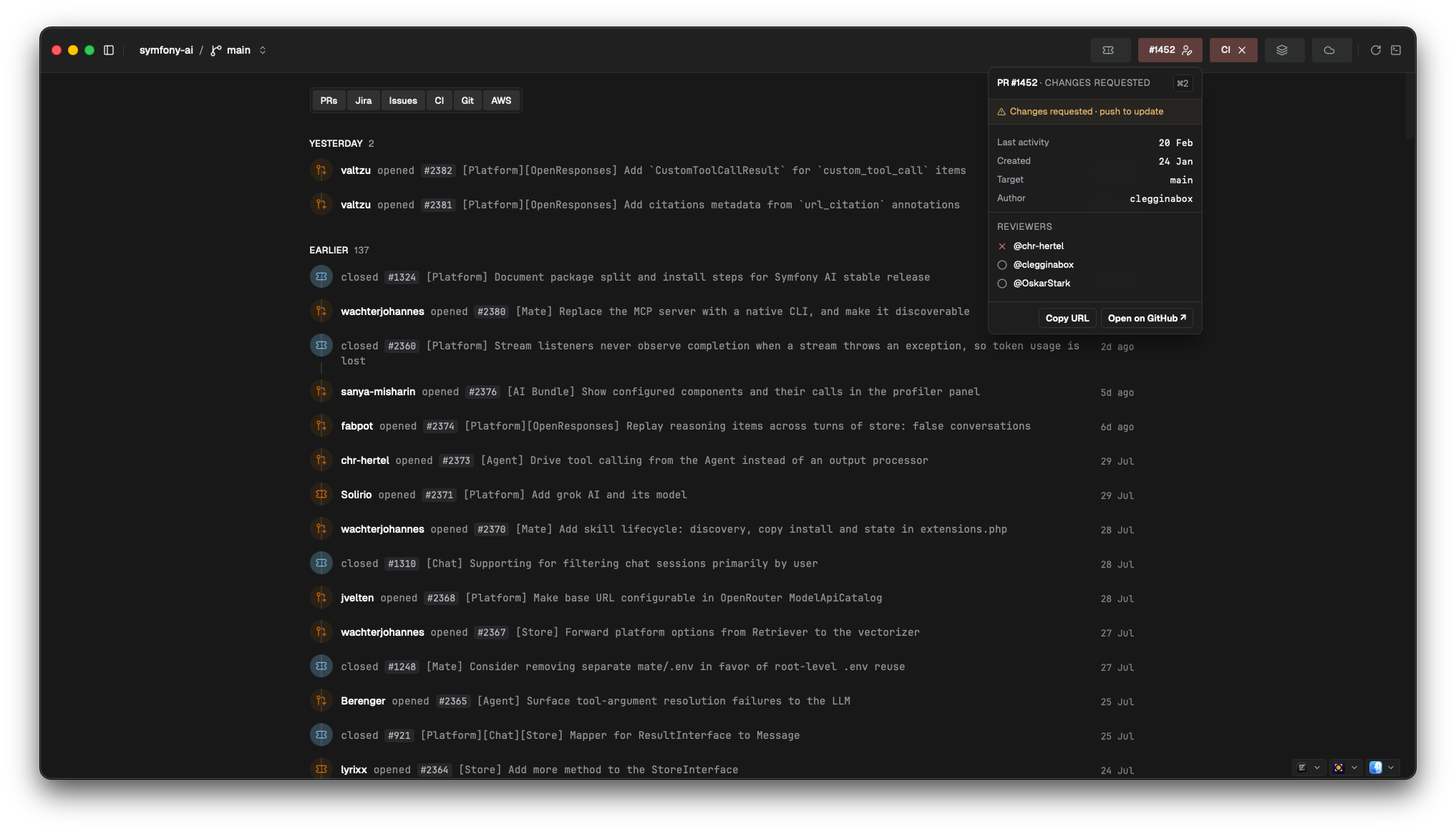
| PR | ⌘2 | PR state — draft, open, approved, changes requested, merged | Reviewers, review rounds, author, target; copy URL, open on host |
| CI | ⌘3 | Rolled-up pass / fail / running for the head commit | Per-pipeline counts, link to the last run |
| Stack | ⌘4 | Running / total compose services | Per-service start, stop, restart |
| Cloud | ⌘5 | Count of running ECS tasks | Per-task log tail, open in the AWS console |
Only one popover is open at a time; opening another replaces it. Popovers don't take focus.
Beside the pills is the sync indicator. Hover it for per-connector freshness; clicking it forces a sync pass rather than waiting for the next interval.
Branch switcher
⌘S (or clicking the branch) opens the switcher under the branch pill: a search box, contextual git actions for the branch you're on, then every local branch.
Each row shows the branch name, ahead/behind counts, and three status badges — ticket, PR, CI. The badges are icon-only: the icon names the dimension, the colour carries the state. A dimension with no data is dimmed rather than hidden, so row layout stays constant.
Shadow preview. Arrow keys move the highlight, and the entire HUD behind the popover re-renders as that branch — its ticket, its PR, its CI. Nothing is checked out. It's a look, not a switch. Escape or closing the popover snaps you back to the real branch.
Enter (or clicking a row) checks the branch out. Rows that your dirty working tree would clobber are greyed with a lock icon and refuse the checkout: "Stash or commit to switch — changes would be overwritten." The blocked set is recomputed while the popover is open, so committing from the action row unlocks rows without a reopen.
The action row above the list is pinned to the branch you're actually on, not the one you're previewing, and is non-destructive only: commit staged changes, then Publish / Push / Pull depending on upstream state. A diverged branch is reported, not actioned — that one goes to your terminal.
Next
- The Map → — the spatial view the Network and Recent commands fly you to
- Build & run → — the console pane that palette tasks stream into
- Configuration → —
salience.toml, where the tasks inRun task…come from