Jira
Connect Jira Cloud to see tickets alongside the branches and pull requests that implement them, and to spot when the ticket and the work disagree.
What appears in Salience
Salience reads tickets from Jira. Each ticket carries its key, summary, status, assignee, description and links to the tickets it blocks or depends on. Selecting a ticket opens it in Jira.
Tickets become useful when they're related to your other work. Salience links a ticket to a branch when the branch name contains the ticket key, and to a pull request when the pull request's branch or title contains it. For the ticket DEMO-2, the branch DEMO-2-docker and a pull request titled Fixes DEMO-2: add Docker Compose stack all belong to the same unit of work.
With both sides known, Salience can tell when they disagree. These show up as situations in the Out of sync section of your work:
| What Salience notices | Shown as |
|---|---|
| A pull request has merged, but the ticket isn't Done | merged · ticket not closed |
| A branch exists, but the ticket is still To Do | branch started · ticket not moved |
| The ticket is Done, but its pull request is still open | ticket done · PR still open |
| The ticket is in progress, but has no branch or pull request | ticket in flight · no branch or PR |
Situations are raised for your own work only. Salience doesn't change the ticket. The situation's action opens it in Jira so you can decide what to do.
Tickets appear on the project's Jira page, in the Tickets and Ticket tiles, in the Inspector and on the timeline, where status and assignee changes are recorded.
Before you connect
You need:
- A Jira Cloud site, e.g.
https://acme.atlassian.net. Jira Data Center and Jira Server aren't supported. - The email address of your Atlassian account.
- An API token for that account. Create one at id.atlassian.com/manage-profile/security/api-tokens. Name it
Salienceso you can find it later.
The token has the same access as your Atlassian account. Salience can only read tickets you can already see. It calls a fixed list of read-only Jira endpoints and refuses any other request to your Atlassian site — see Privacy and security.
Connect Jira
Jira is connected per project, so different projects can use different Jira sites.
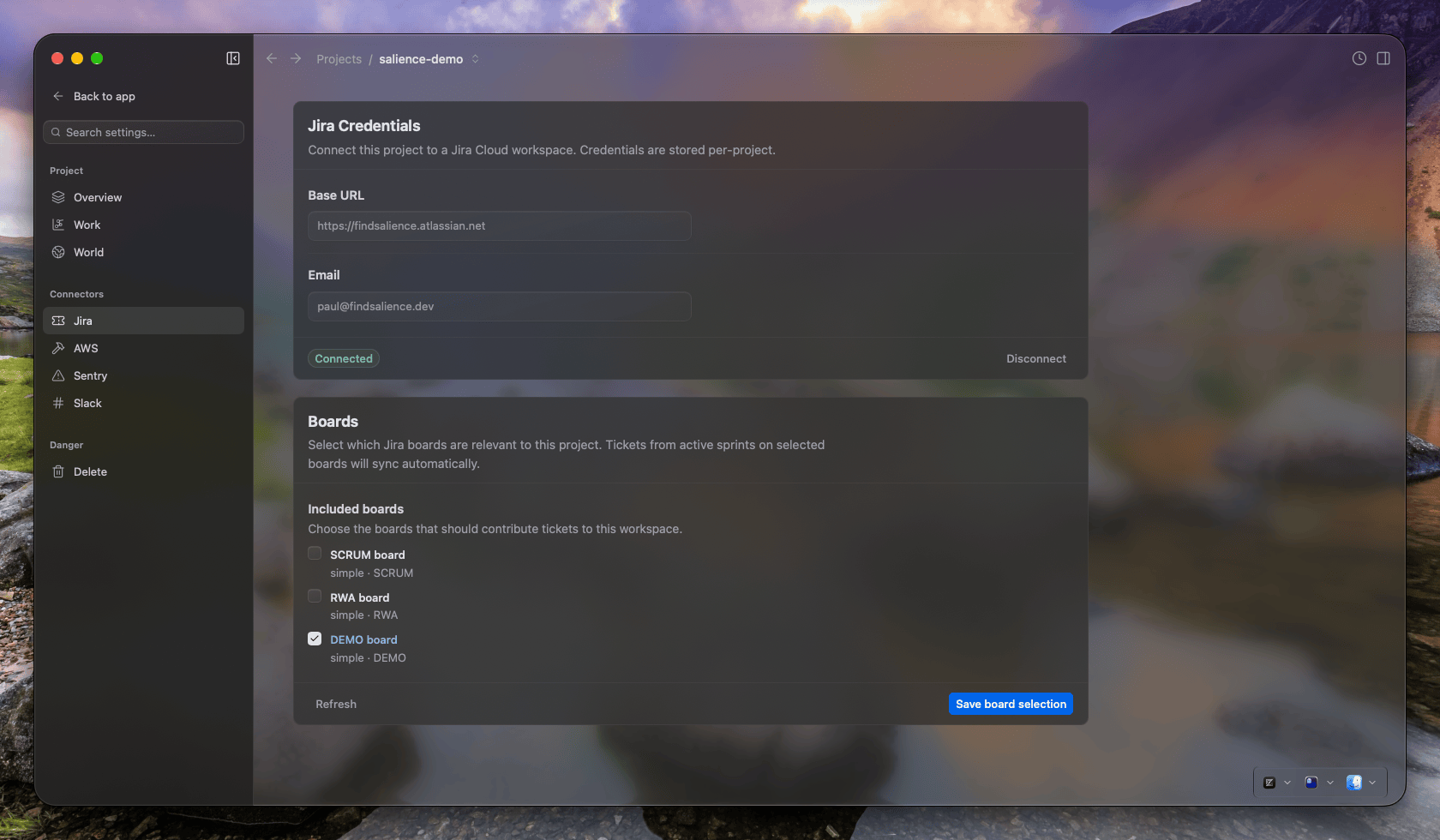
- Open the project's Project settings → Jira.
- In Jira Credentials, fill in:
- Base URL — your Jira site, e.g.
https://acme.atlassian.net. - Email — your Atlassian account email. It must be the email the token belongs to.
- API token — paste the token.
- Base URL — your Jira site, e.g.
- Click Connect. Salience checks the credentials with Jira before saving them.
- In Boards, tick the boards that belong to this project under Included boards, then click Save board selection.
- Optional: in Status Mappings, map your workflow's statuses to Salience's categories, then click Save mappings.
Saving the board selection starts a sync straight away.
Status mappings
Salience groups Jira statuses into six categories: To Do, In Progress, Blocked, Code Review, In Test and Done. It uses these categories to sort tickets and to notice when a ticket and its work disagree.
Most workflows need no mapping. Salience recognises common status names on its own:
| Status name contains | Category |
|---|---|
| progress, in development | In Progress |
| review | Code Review |
| test, qa | In Test |
| blocked, hold, impediment | Blocked |
| done, closed, resolved, complete | Done |
| anything else | To Do |
Map a status yourself when your workflow uses a name that doesn't fit, such as Awaiting deploy. The Status Mappings card appears once Salience has synced some tickets. If you've just connected, leave the settings page and come back after the first sync.
Check the connection
The Jira Credentials card shows Connected, and the Base URL and Email become read-only.
Within a few seconds of saving your boards, a Jira entry appears in the project's sidebar. It lists the tickets on your selected boards, with tabs for Mine and All. If it says No tickets on this project's boards yet, check that the boards you ticked have issues on them.
Create or check out a branch that contains a ticket key, such as DEMO-2-docker. The ticket then appears with that branch in your work.
The Sync status tile shows a Tickets row. It shows Could not sync Tickets when a sync fails.
What Salience fetches
Each sync reads:
- The issues on each selected board — up to 100 per board, whether or not they're in an active sprint.
- Tickets whose keys appear in the project's local branch names, even if they're on another board.
- Tickets assigned to you on the same Jira site that aren't Closed.
Only tickets on selected boards appear on the Jira page and in the Tickets tile. Tickets found through a branch name or through assignment still appear with the branch or pull request they belong to.
Tickets refresh every 5 minutes. Connecting and saving a board selection sync straight away.
Limitations
- Read-only. Salience never moves, assigns, edits or comments on a ticket.
- Some fields aren't synced. Priority, issue type, sprint, labels, epic and comments don't appear in Salience.
- Ticket keys must be in capitals. The key must also be separated from the rest of the branch name by
/,-or..DEMO-2-dockerandfeature/DEMO-2are linked.demo-2-dockerandDEMO-2_dockeraren't. - Pull request descriptions aren't read. Put the ticket key in the branch name or the pull request title.
- One Jira site per project. To change the site, disconnect and connect again. There's no edit in place.
- Large boards. Salience reads the first 100 boards on your site and the first 100 issues on each selected board.
- Tickets aren't removed. A ticket that leaves a selected board stays in Salience. Disconnecting also leaves synced tickets in place.
- Status mappings apply to how tickets are displayed. The Out of sync checks still use the built-in rules above. After changing a mapping, restart Salience to see it everywhere.
Troubleshooting
Connecting fails with jira auth failed: HTTP 401 Unauthorized. The email and token don't match. Check that the email is the one on the Atlassian account that created the token, not just an address you use in Jira. If the token has expired or been revoked, create a new one.
Connecting fails with jira auth validation failed. Salience couldn't reach the site. Check the Base URL, including https://, and your network connection.
The Boards card says No boards found. Your account can't see any boards on this site. Check that you can see the board in Jira itself with the same account.
A ticket is missing from the Jira page. Check that its board is ticked under Included boards. Tickets from other boards appear only with their branch or pull request.
A branch isn't linked to its ticket. Check that the key is in capitals and that the ticket exists on a Jira site this project is connected to. See Limitations for the naming rules.
Nothing updates after a sync. A branch name that looks like a ticket key but isn't one, such as release/UTF-8, can make Jira reject the whole search. Check the Sync status tile and Network Inspector for Jira's response.