Sentry
Connect Sentry to see a project's unresolved issues next to the rest of its work, and to lay a stack trace over the code Salience has indexed.
What appears in Salience
Salience reads unresolved issues from the Sentry projects you pick. Each issue shows its title, the culprit, how many events it has had and when it was last seen. Selecting an issue opens it in Sentry.
Issues appear in two tiles:
- Sentry — a list of unresolved issues, sorted by Last seen or Most events.
- Stack trace on call graph — takes the latest event of an issue you choose and maps its stack frames onto the functions in Salience's code graph, with one step of callers and callees around each match. It shows how many frames matched and, for those that didn't, why.
Stack traces aren't stored. The trace tile fetches the latest event when you open or refresh it.
Salience doesn't yet relate Sentry issues to releases, commits, branches or pull requests, and it doesn't raise situations from them.
Before you connect
You need:
- A Sentry auth token with only these scopes:
org:read,project:read,event:read. - Your organization slug — the part after
sentry.io/organizations/in Sentry's URLs, e.g.my-org. - For the stack trace tile: the project's code indexed in the code graph. Matching works for PHP and Rust.
Salience doesn't check a Sentry token's scopes the way it does for GitHub. A token without event:read connects, then fails when it fetches issues. Create the token with exactly the three scopes above.
Connect Sentry
The token and organization are stored once for your Mac. Each Salience project then chooses which Sentry projects it tracks.
- Open the project's Project settings → Sentry.
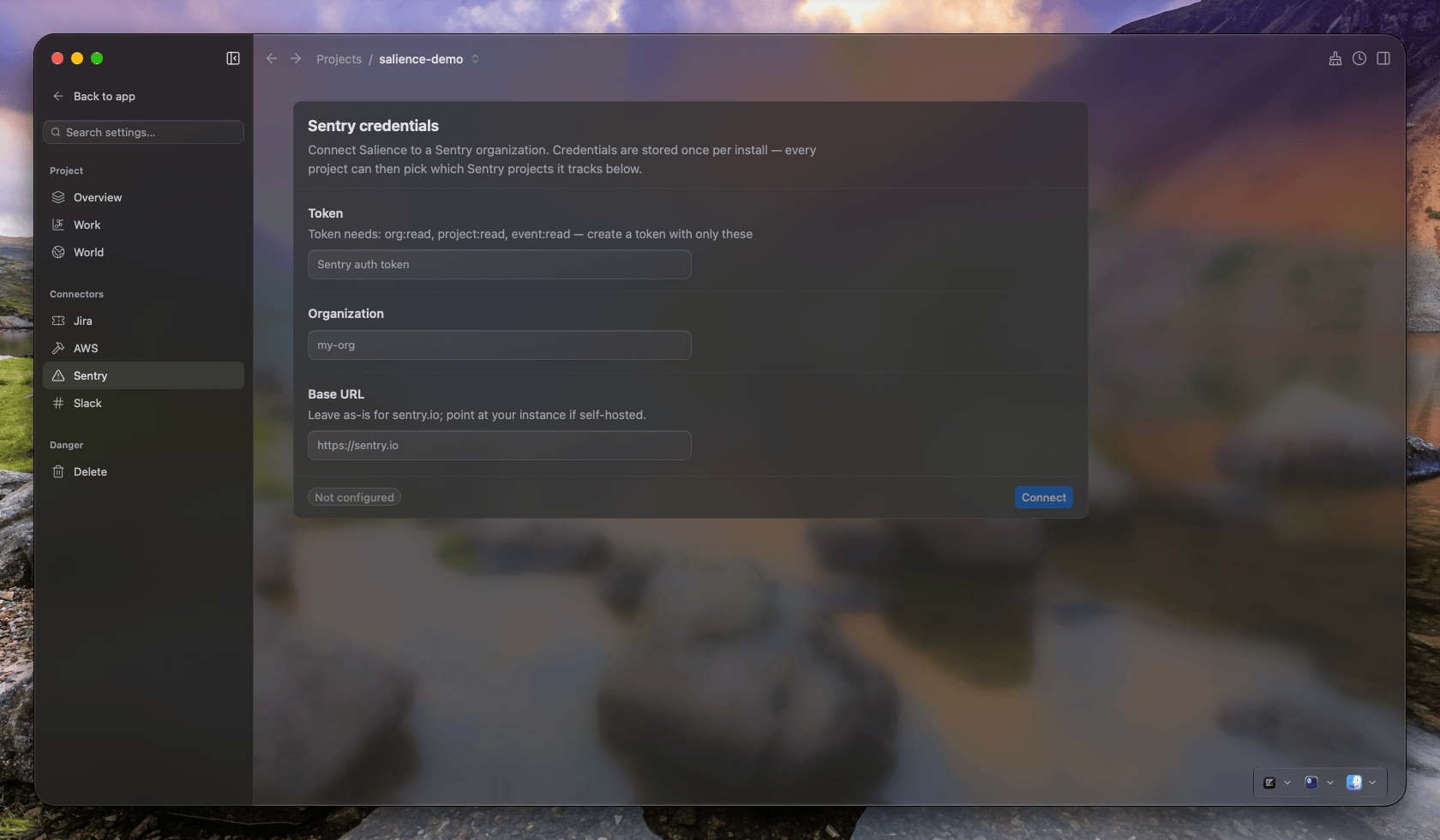
- In Sentry credentials, fill in:
- Token — your auth token.
- Organization — your organization slug.
- Base URL — leave it empty for sentry.io. If you self-host Sentry, enter your instance's address.
- Click Connect. Salience lists the organization's projects to check the credentials, and stores them only if that works.
- In Sentry projects, tick the projects this Salience project should track under Available projects.
Ticking a project starts a sync straight away. Only the projects you tick are read. Nothing else in the organization is scanned.
Other Salience projects reuse the same token and organization. Open their Project settings → Sentry and tick the Sentry projects each one needs.
Check the connection
The Sentry credentials card shows Connected once the token and organization work. The Sentry projects card shows how many projects are scoped, e.g. 2 of 5 scoped.
Add a Sentry tile to a page. Unresolved issues for the ticked projects appear within a few seconds of ticking them. If a project has no unresolved issues, the tile shows No matching issues.
The Sync status tile has a Sentry row. It shows failed if none of the ticked projects could be read.
Limitations
- Unresolved issues only. The Sentry tile's Ignored and Resolved filters are always empty, because only unresolved issues are synced. When you resolve an issue in Sentry, it drops out of Salience on the next sync.
- The 25 most recent issues per project. Salience fetches the 25 unresolved issues seen most recently in each ticked project. Older unresolved issues aren't shown.
- No environment filter. Issues from every environment are included.
- One organization per Mac. The token and organization are shared by every Salience project. Connecting a different organization replaces the first.
- Traces use the latest event. The trace tile compares frames with your local code as it is now. It doesn't check that the deployed code matches, so a match can point at a line that has since changed.
- Large organizations. The project picker reads the first page of Sentry's project list. Very large organizations may not show every project.
- Refresh. Issues update about every two minutes — more often for a project you're actively working in, less often for one that's gone quiet.
Troubleshooting
Connecting fails with Sentry API returned 401 or 403. The token is wrong, expired or missing a scope. Create a new token with org:read, project:read and event:read, then connect again.
Connecting fails with Sentry API returned 404. Check the organization slug. It's the short name in Sentry's URLs, not the display name.
The credentials card says Not configured after it was connected. Sentry rejected the stored token when the page checked it. Disconnect, create a new token and connect again. If the card shows Sentry unreachable, Salience couldn't reach Sentry and your stored credentials may still be valid. Check your network and the Base URL.
A project is missing from Available projects. Refresh re-reads the list Salience already has; it doesn't ask Sentry again. To pick up a project created after you connected, leave the Sentry settings page and open it again.
The Sentry tile is empty. Check that at least one project is ticked in Sentry projects. If requests fail, open Network Inspector from the sidebar to see Sentry's response.
The trace tile says no frames matched. Index the project's code in the code graph, then click Refresh in the tile. Frames from dependencies (vendor/, node_modules/) are shown as external frames and are never matched.
Issues are still showing after you disconnect. Disconnecting removes the token and organization. Issues that were already synced stay until you untick their Sentry projects.